
Before installing any Android application, it is useful to understand what access the app may request from your device.
The same applies when installing a ZZK Game APK. Users should review the permissions requested by the particular app version and make sure they understand why access is being requested.
Android provides controls that let users review and change permissions for individual applications. Depending on the Android version, users can manage access to features such as the camera, microphone, location, contacts, files, photos, notifications, and other device capabilities.
This ZZK game app permissions guide explains how to review permissions, what common Android permissions mean, which requests deserve extra attention, and how to manage app access safely in 2026.
What Are ZZK Game App Permissions?
App permissions determine which device features or information an application can access.
The exact permissions can vary depending on the application version, Android version, and how the application is distributed.
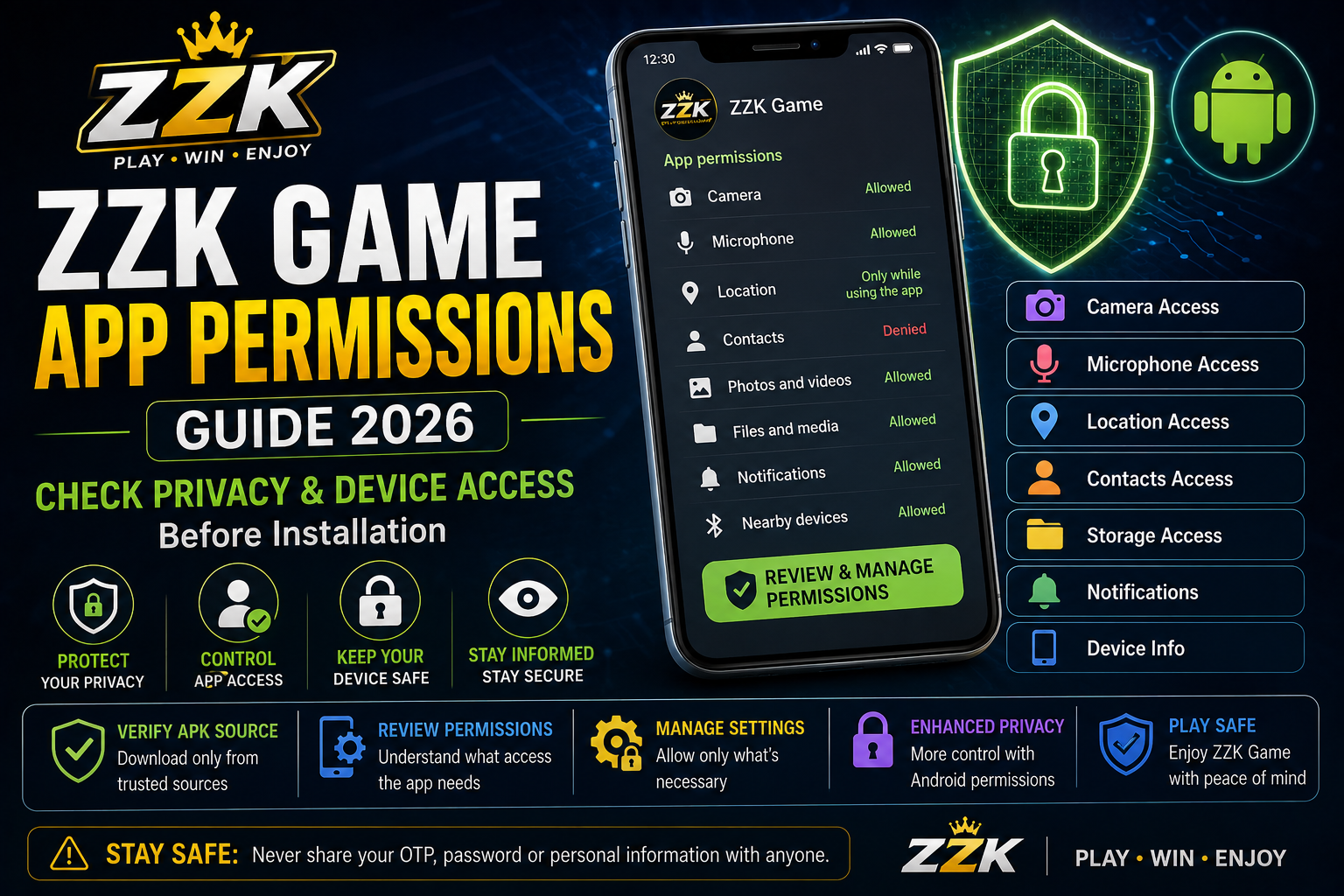
Android permission categories can include:
- Camera
- Microphone
- Location
- Contacts
- Photos and videos
- Files
- Notifications
- Nearby devices
- Phone-related information
The permission list for a particular ZZK version should always be checked directly on the device rather than relying on an old online list.
Google explains that an app’s permissions list describes the data or features that an application can access or request access to.
Why Should You Check ZZK App Permissions?
Reviewing permissions gives users greater control over device privacy.
It can help you:
- Understand what the application can access
- Identify unnecessary permissions
- Reduce unwanted data access
- Review privacy settings
- Control sensitive device features
- Make more informed installation decisions
Android’s permission system allows users to change individual permissions instead of automatically giving an application unrestricted access.
How to Check ZZK Game Permissions on Android
If ZZK is already installed, you can generally review its permissions through Android Settings.
A typical process is:
- Open Settings.
- Tap Apps.
- Find and select the ZZK application.
- Open Permissions.
- Review the allowed and denied permissions.
- Change permissions according to your requirements.
The exact menu names can differ between Samsung, Xiaomi, OnePlus, Vivo, Oppo, Pixel, and other Android devices.
Android also provides a Permission Manager that lets users review permissions by category.
How to Review Permissions Before Installation
When installing an APK outside an app store, users should be particularly careful about the source of the file.
Before installation:
Verify the APK Source
Use a source that you can independently verify.
Do not assume that every website offering a file labelled “ZZK APK” is an official source.
Check the Application Information
Review the application name, version, developer information, and other available details.
Review Requested Access
Pay attention to sensitive permissions and consider whether they make sense for the application’s functionality.
Avoid Unexplained Settings Changes
Be cautious if an installation instructs you to enable unusual or sensitive device settings without clearly explaining why they are required.
Android warns that harmful applications may attempt to persuade users to change settings that can put personal data at risk.
Common Android Permissions Explained
Understanding common permissions makes it easier to evaluate an application.
Camera
Camera permission allows an application to take photographs or record video.
If an application does not appear to have a feature that requires camera access, consider whether that permission is necessary.
Microphone
Microphone permission allows an application to record audio.
Users should review microphone access carefully because audio can be sensitive information.
Location
Location permission can provide an application with information about the device’s location.
Depending on the Android version, users may have choices such as approximate or precise location and different levels of access.
Contacts
Contacts permission allows an application to access information stored in the device’s contacts.
Because contacts contain information about other people, this permission deserves careful consideration.
Photos and Videos
This permission can allow an application to access photographs and videos.
Newer Android versions provide more granular approaches to media access in supported situations.
Files
File access can provide an application with access to information stored on the device.
Android has introduced more restricted storage models to give users greater control over file access.
Notifications
Notification permission allows an application to display notifications.
Users can turn notifications on or off according to their preferences.
Nearby Devices
Some applications may request access to nearby devices when a feature requires device-to-device communication.
Review whether the permission corresponds to a feature you actually use.
Which Permissions Need Extra Attention?
Not all permissions carry the same privacy implications.
Pay particular attention to requests involving:
- Contacts
- Location
- Camera
- Microphone
- SMS
- Call logs
- Broad file access
- Accessibility or restricted settings
Google’s Android security guidance recommends minimizing permissions and avoiding requests for sensitive access when it is not required for an application’s functionality.
What If ZZK Requests an Unexpected Permission?
If an application requests access that does not seem connected to its purpose, do not automatically approve it.
Instead:
- Read the permission request carefully.
- Consider what feature might require it.
- Check the application’s documentation.
- Verify the application source.
- Review Android’s permission information.
- Deny access when appropriate.
If you cannot understand why a sensitive permission is being requested, investigate further before continuing.
Restricted Settings and APK Installation
Android includes additional protections around certain sensitive settings.
Some applications installed from outside standard app stores may encounter restrictions around sensitive device access.
Google warns that restricted settings can provide access to sensitive information and recommends allowing them only when you trust the application and understand why the access is needed.
Therefore, do not enable sensitive settings simply because an unknown website tells you that they are required.
ZZK APK and Storage Permissions
Storage access has changed significantly across Android versions.
Modern Android uses more privacy-focused storage models, including scoped storage, which limits applications’ access to shared storage in many situations.
This means users should not assume that an application needs unrestricted access to every file on the device.
If an APK requests broad storage access, consider why that access is necessary before approving it.
How to Change ZZK Permissions After Installation
Permissions can usually be changed after the application has been installed.
A typical path is:
Settings → Apps → ZZK → Permissions
Select a permission and choose the available option.
Depending on the permission and Android version, options may include:
- Allow
- Don’t allow
- Allow only while using the app
- Ask every time
- Approximate location
- Precise location
Android’s available choices depend on the permission and operating-system version.
Check the Android Privacy Dashboard
Supported Android versions provide a Privacy Dashboard that can show which applications have accessed certain permissions.
The dashboard can help users understand:
- Which apps accessed sensitive permissions
- Which permission was used
- When access occurred
On supported devices, the general path is:
Settings → Security & Privacy → Privacy → Privacy Dashboard
The exact location can vary by Android version and manufacturer.
Review Permissions After an Update
Permission requirements can change when an application is updated.
Therefore, users should review important permissions again after installing a new version.
This is especially useful when:
- A major application update is released
- Android itself is updated
- A new feature is introduced
- The application starts requesting new access
- Device behavior changes unexpectedly
Google’s Android security guidance emphasizes that sensitive permissions should be necessary for the application’s functionality and appropriately explained to users.
What If You Deny a Permission?
Denying a permission does not necessarily mean the entire application will stop working.
If a specific feature depends on that permission, however, the feature may not work.
For example, an application cannot use camera functionality if camera access has been denied.
Android lets users control individual permissions, so you can evaluate access based on the feature you want to use.
Should You Give ZZK Every Permission It Requests?
No application should automatically receive every permission simply because it asks for them.
A better approach is:
Review → Understand → Allow only when appropriate.
If a permission appears unrelated to the application’s intended function, investigate before approving it.
Warning Signs During APK Installation
Users should be cautious if an APK installation process:
- Comes from an unknown source
- Requests unusual permissions
- Demands sensitive settings changes
- Asks for passwords or OTPs
- Uses misleading security warnings
- Redirects through suspicious websites
- Claims that security features must be disabled
- Offers unexplained modified APK versions
Google specifically recommends caution when an app asks users to change device settings in ways that could expose personal data.
How to Keep Your ZZK Installation Safer
Follow these basic practices:
Use a Verifiable Source
Download the application from a source you can verify.
Keep Android Updated
Install relevant Android security and system updates.
Review Permissions
Check application permissions before granting access.
Avoid Modified APKs
Modified applications can introduce risks that are not present in the original software.
Protect Account Credentials
Never provide passwords, OTPs, or authentication codes to another person claiming to help with installation.
Monitor Application Access
Use Android’s privacy tools to review permission activity where supported.
What About Google Play Protection?
If the application is available through Google Play, users can benefit from Google’s app-security ecosystem and permission information.
However, if an APK is installed from outside Google Play, users should apply additional caution and verify the source.
Google’s Android guidance specifically recommends checking trusted app sources when users are unsure about an application.
ZZK Game App Permissions Checklist
Before installing or updating the application:
- Verify the APK source.
- Check the application version.
- Review requested permissions.
- Question unnecessary sensitive access.
- Avoid unexplained restricted settings.
- Keep Android updated.
- Review permissions after installation.
- Check the Privacy Dashboard when available.
- Avoid modified APK files.
- Never share passwords or OTPs.
Final Thoughts
Understanding ZZK game app permissions gives Android users more control over their device and personal information.
The exact permissions can vary between application versions and Android releases, so users should check the actual permission information associated with the version they intend to install.
Android provides several privacy controls for reviewing, changing, and monitoring app access. Google’s security guidance also recommends limiting sensitive permissions to functionality that genuinely requires them.
Before installing or updating a ZZK APK, verify the source, review the requested permissions, avoid unexplained security-setting changes, and keep your Android device protected and updated.
Frequently Asked Questions
What are ZZK game app permissions?
They are Android permissions that determine which device features or information the application can access.
Can I change ZZK permissions after installation?
Yes. Android allows users to review and change permissions through the application’s settings page.
Should I allow every permission requested by an APK?
No. Review each permission and determine whether it is necessary for the feature you intend to use.
Can I check when an app used a permission?
On supported Android versions, the Privacy Dashboard can show permission access and when it occurred.
Is broad storage access always necessary?
No. Modern Android uses more restricted storage models, and broad access should not automatically be assumed to be necessary.
What should I do if an APK asks me to enable a suspicious setting?
Stop and investigate the request before proceeding. Google warns that harmful apps may use sensitive settings to put personal information at risk.
Do permissions change between Android versions?
Yes. Android’s permission and storage systems have evolved across versions, so the available controls and behavior can differ between devices.