
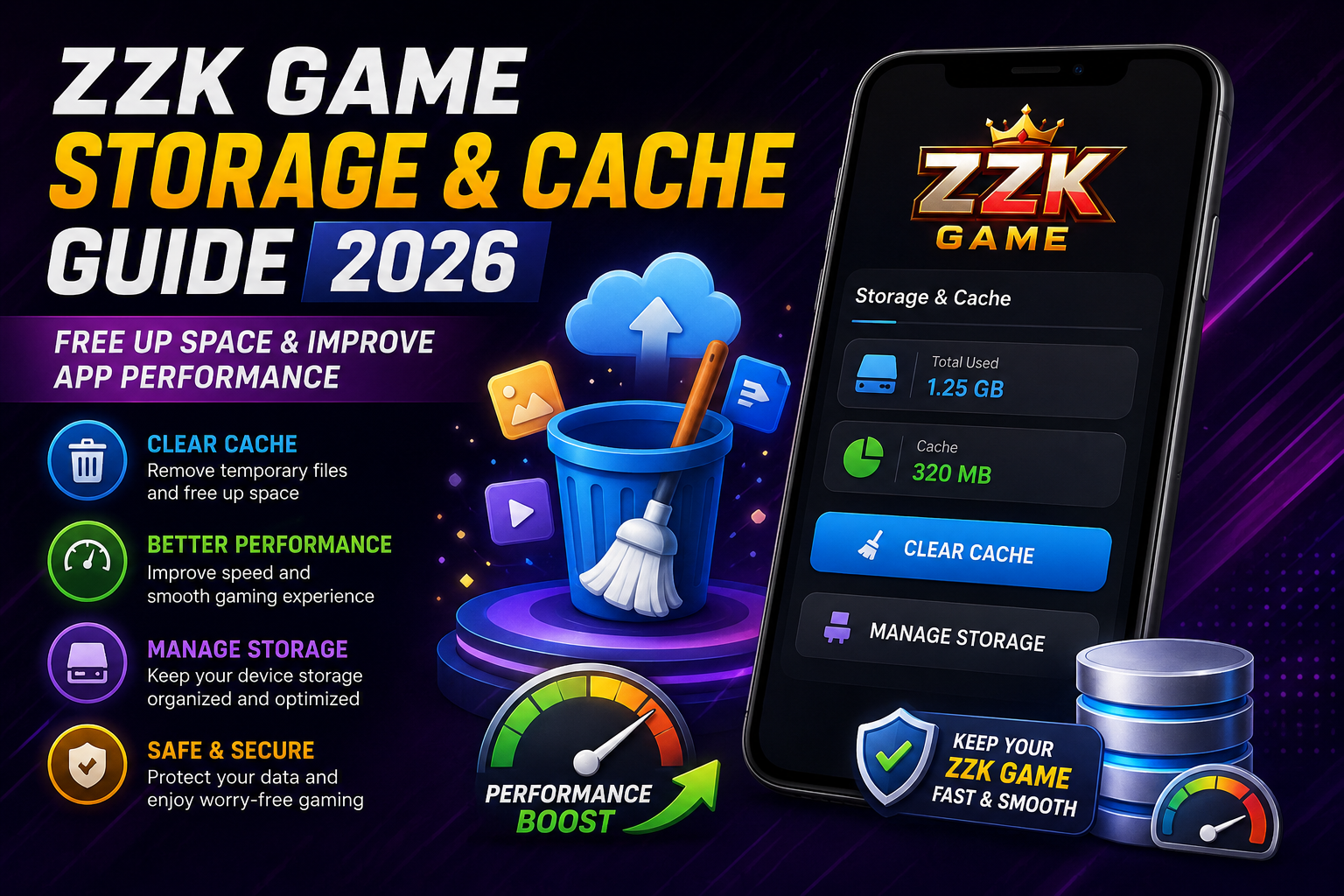
Keeping enough free storage on an Android device can make apps easier to install, update, and use. If you regularly use ZZK Game, managing app storage and temporary cache files can also help prevent common performance problems.
Over time, cached files, downloaded resources, screenshots, videos, and other data can consume valuable space. When storage becomes limited, an Android device may become less responsive or have difficulty installing new applications.
This ZZK Game storage and cache guide explains what cache means, how to check storage usage, when clearing cache can help, and which files you should avoid deleting.
What Is ZZK Game Cache?
Cache consists of temporary files that applications store to make certain operations faster.
For example, an app may temporarily save images, interface resources, or other frequently accessed information. These files can accumulate over time.
Cache is different from important personal or account data. Therefore, clearing cache is generally a maintenance step rather than the same thing as deleting an application.
However, Android menus and available options can vary depending on the phone manufacturer and operating-system version.
Why ZZK Game Storage Management Matters
Storage management becomes particularly important when your phone is close to its capacity.
Some common signs of limited storage include:
- Applications taking longer to open
- Difficulty installing updates
- Warnings about low storage
- Downloads failing
- General device slowdowns
- Temporary files taking up unnecessary space
Keeping reasonable free space gives Android more room to handle temporary files and normal system operations.
How to Check Available Storage
Before deleting anything, check how much space is actually available.
On many Android phones, you can follow a path similar to:
Settings → Storage
The exact menu name may differ between Samsung, Xiaomi, OnePlus, Vivo, Oppo, Realme, Motorola, and other Android devices.
Look at the storage categories and identify which types of files are consuming the most space.
You can then decide whether ZZK Game cache is actually a significant part of the problem.
How to Check ZZK Game Storage Usage
Android normally provides application-level storage information.
A typical process is:
- Open Settings.
- Select Apps or Applications.
- Find ZZK Game in the installed-app list.
- Open the application’s information page.
- Select Storage or Storage & cache.
- Review the displayed storage information.
The labels may be different on your device.
Do not remove application data simply because it appears large. First understand what the option does on your particular Android version.
Cache vs App Data: What Is the Difference?
This distinction is important.
Clear Cache
Clearing cache removes temporary files created by the application.
It may be useful when:
- The app is behaving unexpectedly
- Temporary files have grown considerably
- You want to perform basic app maintenance
- The application appears to be loading outdated temporary resources
After clearing cache, the application may need to recreate some temporary files.
Clear Storage or Clear Data
Clearing application storage/data is more significant.
Depending on how the application works, it may remove locally stored settings, downloaded information, or other app data. You may also need to configure or sign in again.
For this reason, do not use Clear Data as your first troubleshooting step.
If you are unsure what will be removed, check Android’s warning message before confirming.
How to Free Up Space Without Removing Important Data
You don’t always need to delete the game or its data to recover storage.
Try these safer maintenance steps first:
1. Remove Unnecessary Videos
Large videos can consume much more storage than normal images.
Review your gallery and remove files you no longer need.
2. Clean Old Downloads
Open your phone’s file manager and review the Downloads folder.
Remove APK files, documents, images, or other downloads that are no longer required.
Only delete files when you know what they are.
3. Review Large Applications
Android’s storage section can help identify applications that consume significant space.
Remove applications you no longer use rather than deleting important files randomly.
4. Manage Duplicate Media
Repeated screenshots, downloaded images, and duplicate videos can gradually consume storage.
A regular cleanup can prevent storage from becoming unnecessarily full.
5. Keep Some Free Space
Avoid filling your device completely.
Having some available storage gives Android room for temporary files, updates, and normal operations.
When Should You Clear ZZK Game Cache?
There is no need to clear cache every day.
Cache management is more useful when you have a specific reason, such as:
- The application is behaving unusually
- Temporary files have become large
- You are troubleshooting a loading issue
- Your device is running low on storage
If the application is working normally, repeatedly clearing cache may provide little benefit because temporary files can simply be recreated.
Can Clearing Cache Delete Your Account?
Clearing cache is not the same as deleting an account.
However, Android’s Clear Storage, Clear Data, and cache options have different effects. The exact behavior can also depend on the application.
For that reason, always read the confirmation screen before choosing an option.
If account access depends on locally saved credentials or settings, make sure you know your login details before performing more extensive application-data cleanup.
ZZK Game Storage Troubleshooting
If you experience a storage-related problem, use this simple sequence.
Step 1: Check Device Storage
Find the Storage section in Android Settings and confirm whether the device is actually low on space.
Step 2: Review ZZK Game Storage
Open the application’s storage information and check its cache and data size.
Step 3: Clear Temporary Cache
If cache is unusually large or you are troubleshooting an application issue, clearing cache can be a reasonable first step.
Step 4: Restart the Device
A normal restart can help refresh system processes after storage maintenance.
Step 5: Check for Available Updates
If an official update is available through your normal app-distribution source, review the update information before installing it.
Step 6: Recheck Storage
Return to Android’s Storage settings and confirm that sufficient space remains.
What You Should Not Delete
Storage cleanup should be performed carefully.
Avoid deleting:
- Unknown system files
- Android system folders
- Files you cannot identify
- Important account information
- Personal documents
- Photos or videos you still need
- Application data without understanding its purpose
If you’re unsure about a file, leave it alone until you can identify it.
ZZK Game Storage Maintenance Checklist
A simple monthly check can keep your device organized.
Recommended routine:
- Check available device storage
- Review the Downloads folder
- Remove unnecessary large videos
- Delete unwanted screenshots
- Review unused applications
- Check ZZK Game cache when troubleshooting
- Avoid clearing app data unnecessarily
- Keep important files backed up
Frequently Asked Questions
Does ZZK Game cache need to be cleared regularly?
No. Cache does not normally need to be cleared on a fixed daily schedule. Consider clearing it when troubleshooting an issue or when temporary files are consuming significant storage.
Does clearing cache uninstall ZZK Game?
No. Clearing cache and uninstalling an application are different actions.
Will clearing cache remove all ZZK Game data?
Cache and application data are separate. Android normally provides separate options, but the exact labels and behavior can vary by device.
Why is my Android phone running out of storage?
Large videos, photos, downloads, unused applications, cached files, and other media can contribute to low storage. Check Android’s Storage section to identify the biggest categories.
Should I clear ZZK Game data instead of cache?
Not as a first step. Clearing application data can have a much greater effect than clearing temporary cache files, so understand the consequences before confirming the action.
Final Thoughts
Good storage management is a simple part of maintaining an Android device. If you use ZZK Game, periodically checking application storage and keeping unnecessary files under control can help you avoid preventable storage problems.
Start with the least disruptive option: check available storage, remove files you no longer need, and clear temporary cache only when there is a reason to do so. Avoid deleting application data unless you understand what it will remove.
For the best experience, always use legitimate application sources and keep your Android device and applications maintained with appropriate security practices.